NET-TRIO
2022-09-01 008.384
1. Preface
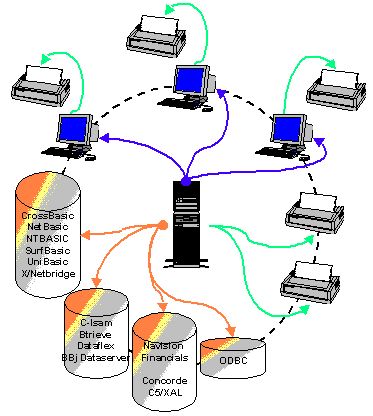
SW-Tools NET-TRIO provides you with server driven applications to execute any report, query or data entry program designed with SW-Tools TRIO.
1. NET-TRIO environment
1.1. NET-TRIO
NET-TRIO enables you to run any of your existing TRIO programs from a browser without any modifications at all.
NET-TRIO does not enable you to produce or amend any program from the browser, for this you will need the normal Windows TRIO. Programs may be used in any way but not modifyed.
The documentation for TRIO RAPGEN, IQ, DATAMASTER and User Administrations describes in details how to make TRIO programs, in this manual you will find informations on how to get these working with your intranet/internet solution.
Working with HTML, JAVA-Scripts however still requires knowledge of these languages, NET-TRIO does not design your website but will act as an integrated part of this, making your data available in any form you wish.
1.2. NET-RG report / CGI generator
TRIO RAPGEN is able to produce print output in HTML or GIF form fittet for browser output, as NET-RG also PDF print for ADOBE Acrobat reader is supported together with a very powerfull way of generating HTML pages, not only as print output, but also as respond to any CGI-call enabling you to easily write and modify your one CGI scripts.
No plugins will be needed on the client side to use NET-RG.
1.2.1. NET-PA Printer Administation
A browser solution will requiere different printersetup than a Windows application, NET-PA enables you to setup these printers on the server for output to network printers or HTML/PDF files.
1.2.2. Program menus
The menus for TRIO program selections in NET-TRIO are made as such reports producing HTML output, and you will even be able to tailor these for your own use as described later.
You may also choose to place the programs directly on your website and leave the automated menus completely out.
1.3. NET-IQ Intelligent Query
Any query produced by TRIO IQ may now be integrated directly to your website. When the client uses an IQ program from the browser, this program will actually be running on the web-server and just input/output data are transported between the client and the server.
For the time being, the DIALOG function of IQ is not supported, however this will be implemented shortly.
1.3.1. NET-PS Plugin Service for NET-IQ
To maintain the communication between the client and the server IQ program, a plugin must be installed at the client browser and the NET-PS program running on the webserver.
1.4. NET-DM DATAMASTER file maintenance programs
Running DATAMASTER programs from the browser enables you to not only query, but also modify existing data or create new.
1.5. NET-US User Administration
The User Administration gives you the possibility to run different set of TRIO programs on the webserver.
1.5.1. Security
NET-TRIO itself does not implement any security systems, this must be maintained by your webserver and website design defining password input and which programs are accessable for the user.
1.6. Licensing
NET-TRIO is licensed as concurrent users on the server site, no individual client license will be needed. To make/modify programs you will need a normal TRIO license.
1.7. Hardware and Intranet/Internet webservers
NET-TRIO will require a Windows server of any kind (95/98/ME/2000/NT), running on a UNIX server is not possible.
You must have the possibility to run own CGI-applications on the server, note that this is not allowed on many public domain servers.
Your own in-house server will be the normal solution, as your data also should be accessable with the NET-TRIO programs.
Dependent on how much output you will keep on the server, you should not underestimate the amount of space needed for the tmp files.
2. Installation
This installation guide will step-by-step describe how to install and setup the NET-TRIO system. It is important that you setup the correct information before any client can access the system.
2.1. CD or Download before installation
If you do not have the SW-Tools product CD please contact one of our partners. The CD will contain all files required to install SW-Tools NET-TRIO.
If you want to download the product you must have a user name and password in order to login to our web site
http://www.swtools.com
From this site you may download by selecting menu
Download - 32-Bit
The following files must be downloaded from the SW-Tools Web site:
- SWXXX0YY.EXE (Installation Program)
- XXX3YY06.ZZZ (NET-TRIO)
where XXX is the major version number, YY is the minor version number and ZZZ is the language code.
If NET-TRIO is to handle a filesystem such as BBj Dataserver (XXX3YY68.ZZZ) or Open Basic Write (XXX3YY67.ZZZ) or others it is required to download the additional product installation files.
All files must be placed in the same directory before installation can be made.
2.2. Installation
Start the installation program SWXXX0YY.EXE and make sure to select the product NET-TRIO.
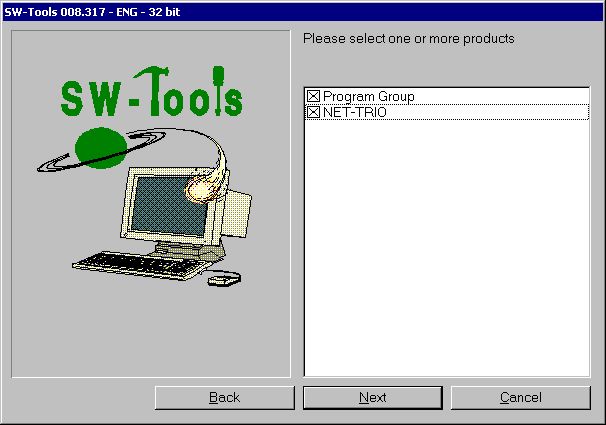
2. Product selection
The installation path is by default set to C:\NETTRIO by may be changed. It is advised not to be the path of an existing TRIO installation.
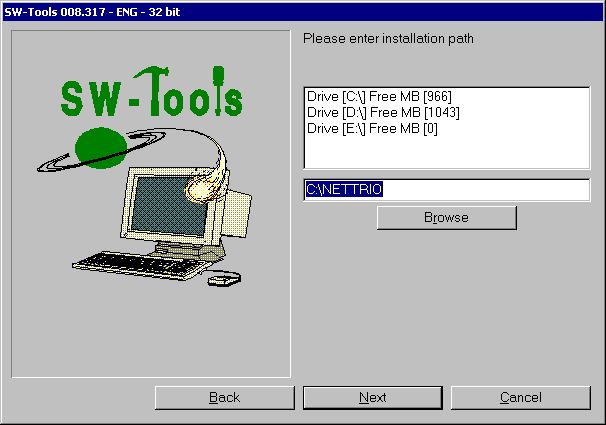
3. Installation path
The program group is by default set to SW-Tools NET-TRIO by may be changed.
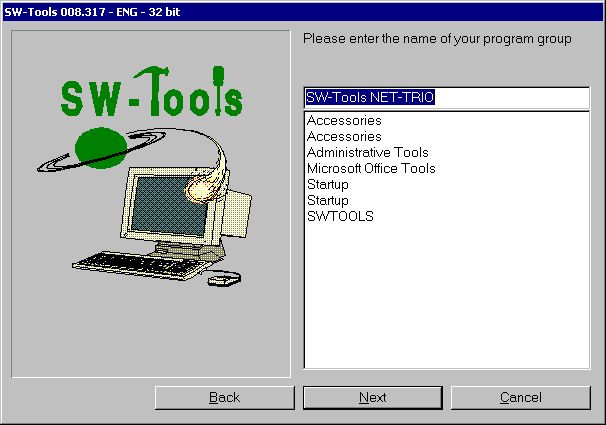
4. Program group
Once products have been selected, installation path and program group the installation program will display a summary of what have been selected and inform that the installation is logged in a specific file. Start the installation by selecting Install.
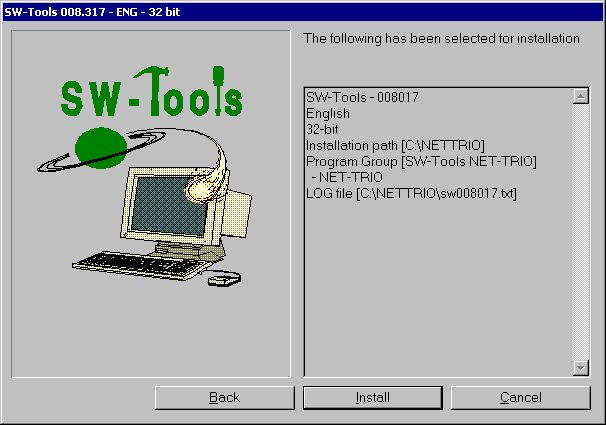
5. Summary of installation
Once installation is finished NET-TRIO will automatically setup the User Administration and create two users named:
- Super
- User
User Super is intended as administrator for the NET-TRIO user administration and preferences. Therefore the installation will ask for a password which may be left blank (NOT recommended).
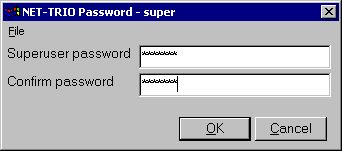
6. Super user password
Now the installation is finished and once OK have been selected the program group will be created.
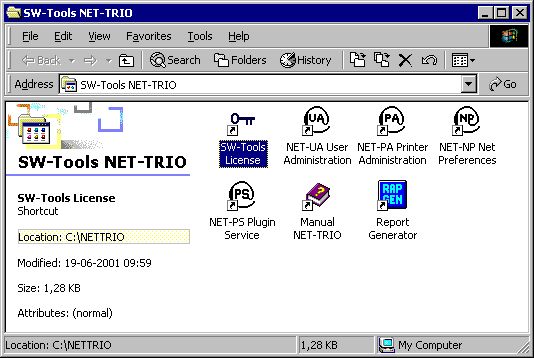
7. Minimal program group content
In order for the installation to work it is now time to:
- Install SW-Tools license
- Setup Preferences
2.3. SW-Tools License
The license is only required on the server where NET-TRIO is installed. Any client that access NET-TRIO will NOT require a separate license, however NET-TRIO will check the number of concurrent users running according to the server license. If too many users access NET-TRIO an error will be returned to the client side.
It is nessessary to have product 0114 in order to run NET-TRIO.
Please refer to the SW-Tools License manual for more information on how to install a license.
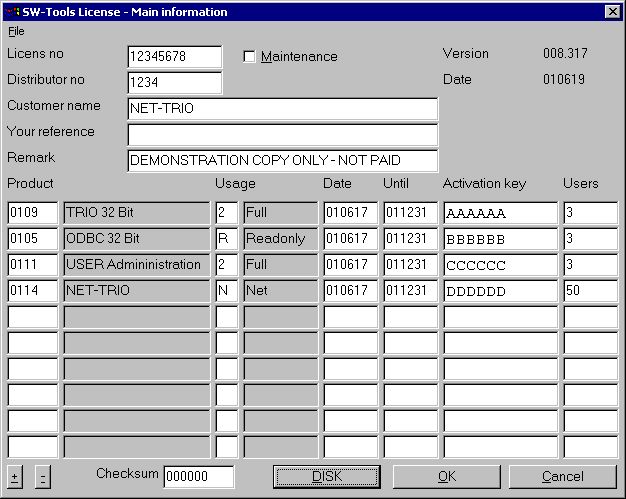
8. Sample NET-TRIO license
2.3.1. Windows TRIO license on the server
You may use Windows TRIO directly on the server only with the NET-TRIO license, each TRIO program will count as one NET-TRIO concurrent user.
However usually the TRIO programs will be defined from a local client as developing directly on the server should be omitted.
2.3.2. Too many concurrent users
When the actual concurrent users allowed are exceeded, the HTML page
c:\nettrio\netusers.eng
will be returned instead of the normal report output (.ENG being the language).
You may modify this page according to your needs.
IQ will not use this file to report the error, but rather display the text set in the file swnet.txt located in the NET-TRIO directory named
SWNT_eng_liciqerr="Sorry but NET-IQ is busy - Please try again later"
2.4. NET-UA User Administration
The user administration is as mentioned earlier setup the first time NET-TRIO is installed. It will have no effect on any current SW-Tools TRIO installation.
The normal start screen of the user administration contains a button to setup the user administration. It is not nessessary to select this function because the installtion of NET-TRIO have automatically setup this to point to the installtion path selected (e.g. C:\NETTRIO).
Please refer to the SW-Tools User Administration manual for more information on how to use this module.
2.4.1. Add user with link to existing TRIO installation
It is possible to link to an existing TRIO installation simply by creating a user that points to the location of the TRIO installation.
For example, if TRIO is installed on the same server as NET-TRIO but in directory C:\SWTOOLS you may setup a user named TRIO as shown here.
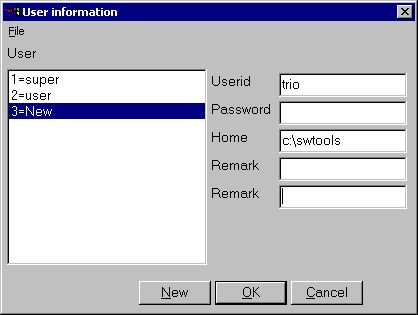
9. User linked to existing TRIO installation
2.5. NET-NP Preferences
The setup of NET-TRIO contain all the information required to produce real URL addresses and report output at specific locations on the system. The entire NET-TRIO system depend on these settings.
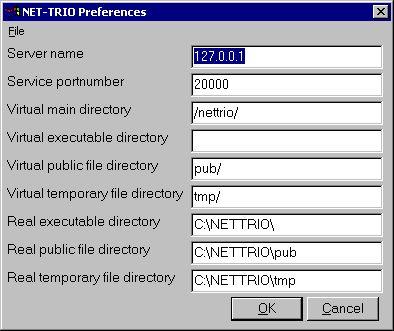
10. Standard preference
2.5.1. Server name
Name of the NET-TRIO server. This is normally the host name for the server machine. It is used when NET-TRIO needs to generate an URL, e.g.
http://www.swtools.com/...
where www.swtools.com is the server name. The field may also be an IP address, e.g. 127.0.0.1 will equal an URL
http://127.0.0.1/...
2.5.2. Service portnumber
This field is used by the NET-PS Plugin Service application. It is important only to the SW-Tools plugins which need to access this service. All SW-Tools plugins must know this port number. By default installation it is set to 20000.
2.5.3. Virtual main directory
The virtual main directory may be a part of the complete URL address for your site. If NET-TRIO is to run on the following address
http://myserver/nettrio/...
the field Server name is myserver and this field is /nettrio/.
For example, if you use NET-TRIO in connection with Microsoft Personal Webserver you may setup various virtual directories. Each virtual directory is a subcomponent to the home. This field must equal one of the top-level virtual directory aliases or be left blank.
Important: When NET-TRIO uses this field in connection with the other Virtual directory fields below it is important to know how they are concatenated. For example, whenever NET-TRIO needs to generate dynamic HTML pages with reference to a public JAVASCRIPT file (located in the public directory) it uses the following syntax:
<SCRIPT LANGUAGE"Javascript" SRC="#68#69_swnet.js"></SCRIPT>
which is then translated into
<SCRIPT LANGUAGE"Javascript" SRC="/nettrio/pub/swnet.js"></SCRIPT>
2.5.4. Virtual executable directory
This field should normally be left blank. However, if the NET-TRIO executables is moved to another directory then the one equal to the Virtual main directory it must be entered.
For example, if the report executable (RAP00132.EXE) is to be located in a virtual directory named cgi-bin so that the URL is
http://myserver/nettrio/cgi-bin/rap00132.exe
the field must be entered as
cgi-bin/
or if the Virtual directory is a root directory
http://myserver/cgi-bin/rap00132.exe
the field must be entered as
/cgi-bin/
2.5.5. Virtual public file directory
The public files are files such as JAVASCRIPT files (.js), static HTML pages, pictures (.gif/.jpg) etc. The public files required by NET-TRIO is installed as a subdirectory to the NET-TRIO installation directory, e.g.
c:\nettrio\pub
Therefore the normal procedure is to define a virtual directory named
pub/
as a subdirectory to the Virtual main directory. This will result in an URL
http://myserver/nettrio/pub/...
2.5.6. Virtual temporary file directory
This virtual directory is used when NET-TRIO produces report output. All temporary files will be stored in this virtual directory. All output will be separated according to the user given by start of the report so that only this user will be able to retrieve output from previous printout.
The temporary directory required by NET-TRIO is installed as a subdirectory to the NET-TRIO installation directory, e.g.
c:\nettrio\tmp
Therefore the normal procedure is to define a virtual directory named
tmp/
as a subdirectory to the Virtual main directory. This will result in an URL
http://myserver/nettrio/tmp/...
2.5.7. Real executable directory
The real executable directory is used to transform an HREF like
/nettrio/cgi-bin/rap00132.exe
into the real local placement of the application, e.g.
c:\nettrio\rap00132.exe
if this field is set to c:\nettrio.
2.5.8. Real public file directory
The real public file directory is used to transform an HREF like
/nettrio/pub/swnet.js
into the real local placement of the file, e.g.
c:\nettrio\pub\swnet.js
if this field is set to c:\nettrio\pub.
2.5.9. Real temporary file directory
The real temporary file directory is used to transform an HREF like
/nettrio/tmp/user/00100001.htm
into the real local placement of the file, e.g.
c:\nettrio\tmp\user\00100001.htm
if this field is set to c:\nettrio\tmp.
2.6. NET-TRIO and Microsoft Personal Webserver (PWS)
This section shows exactly what has been setup in PWS in order for NET-TRIO to work.
In PWS Manager under Advanced Options you may setup virtual directories as part of the <Home> directory.
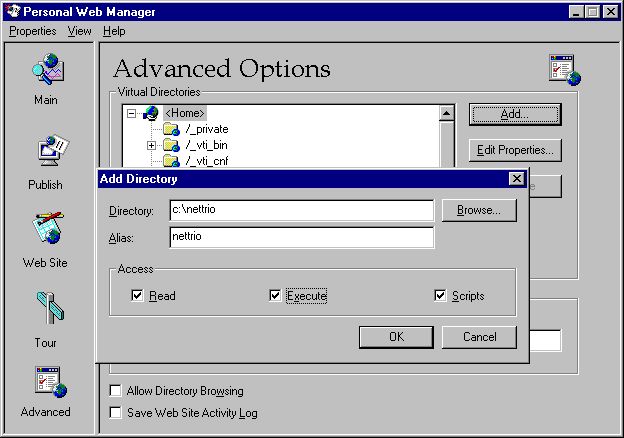
11. PWS - Adding NETTRIO virtual directory
When this is created virtual pub and tmp may be added.
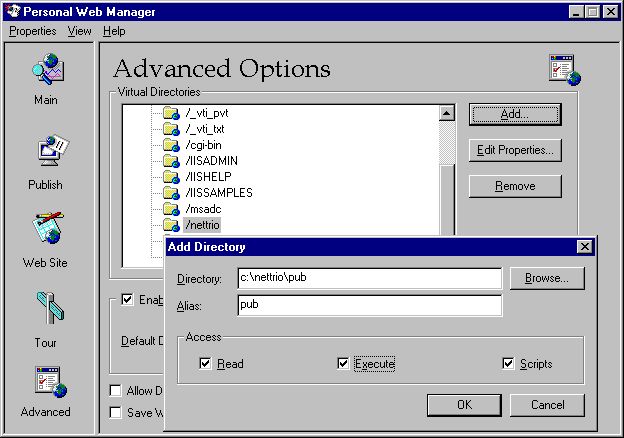
12. PWS - Adding PUB virtual directory
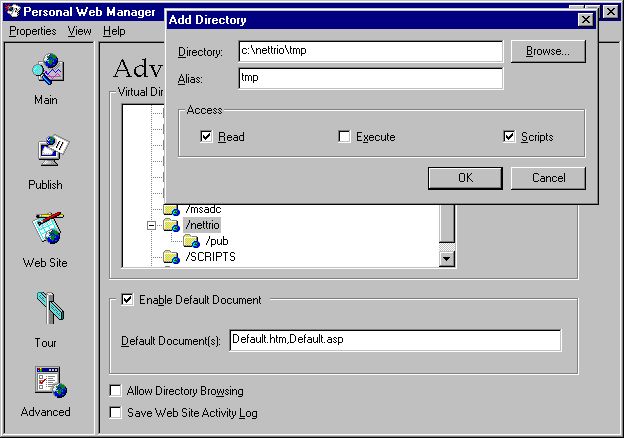
13. PWS - Adding TMP virtual directory
When all tree directories have been created the list should contain the following:
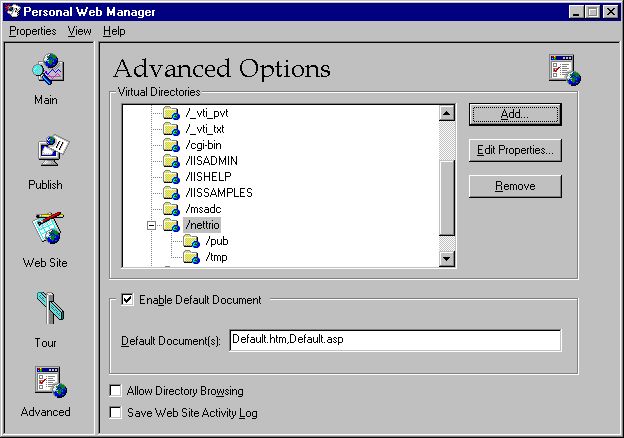
14. PWS - Resulting list of virtual directories
2.7. NET-TRIO and Microsoft Internet Information Server (IIS)
This section shows exactly what has been setup in IIS in order for NET-TRIO to work.
When working with Windows 2000 it is possible to maintain virtual directories of IIS by selecting
START - Control Panel - Administrative Tools - Internet Services Manager
For example, right click on the Default Web Site and select
New - Virtual Directory
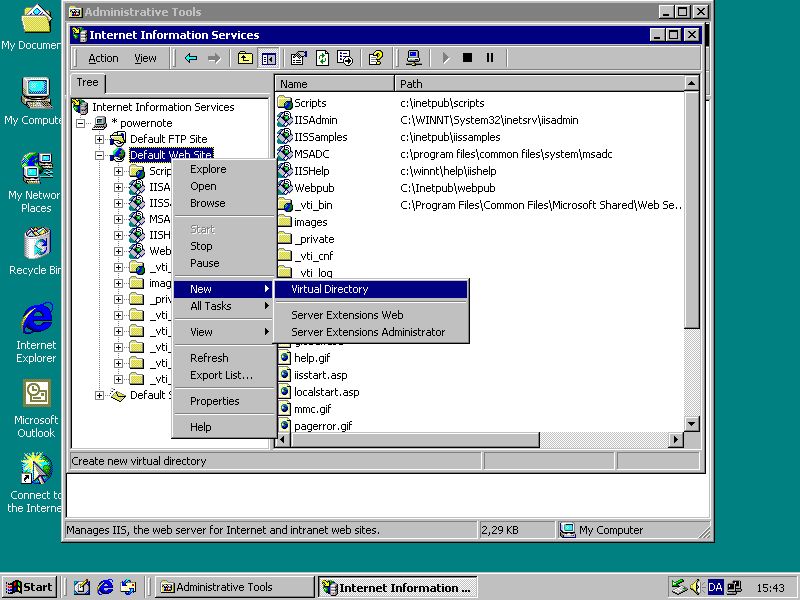
15. IIS - Adding NETTRIO virtual directory
First a name must be entered
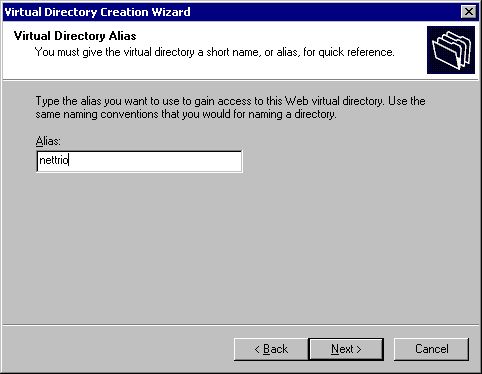
16. IIS - Virtual directory wizard step 1
then the directory location
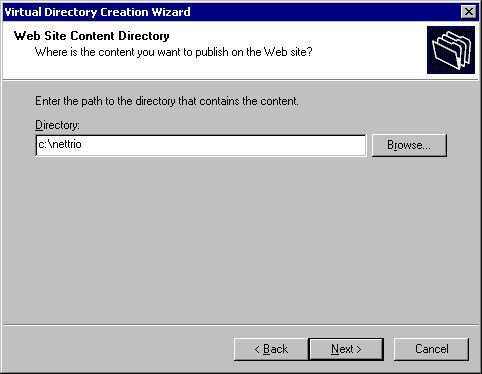
17. IIS - Virtual directory wizard step 2
and finally the access permissions.
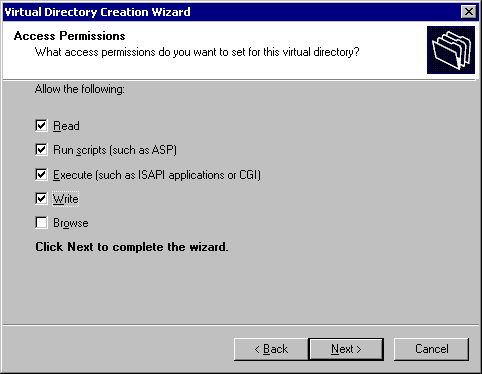
18. IIS - Virtual directory wizard step 3
Notice that we have NOT setup tree virtual directories as we did in PWS because it is not nessessary. Both pub and tmp is a subcomponent to the nettrio virtual directory.
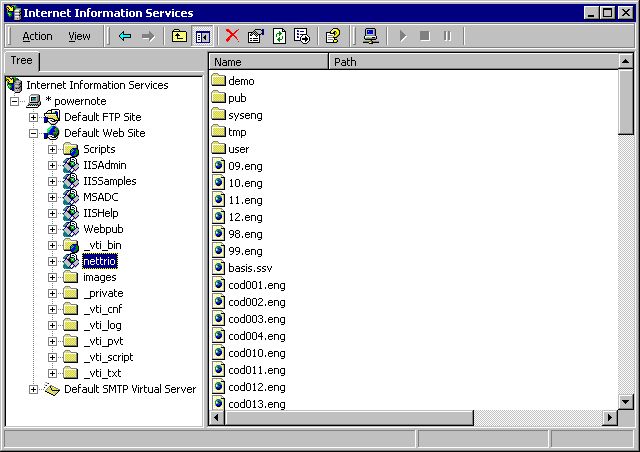
19. IIS - Resulting list of the Default Web Site
2.8. NET-TRIO and other HTTP servers
NET-TRIO is not limited to work with Microsoft HTTP servers only. The only requirement is to be able to setup virtual directories that is eventually linked to physical locations on the server.
2.9. Standard startup page in HTML format
The NET-TRIO installation provides you with a demosystem and a standard startup page in HTML format, which may be accessed from any client. The standard page is structured in frames where the left side acts as a menu where login and selection may be done and the right side will provide output of a report or a query.
The name of the page is
http://XXX/nettrio/swntYYY.htm
where XXX is the server name and YYY is the language code
DAN - Danish
ENG - English
GER - German
For example, the english startup page is
http://myserver/nettrio/swnteng.htm
If you have succeeded in setting up everything correctly you should be able to access this page from any client browser.
Please remember to start NET-PS Plugin Service first
in order to execute NET-IQ queries!
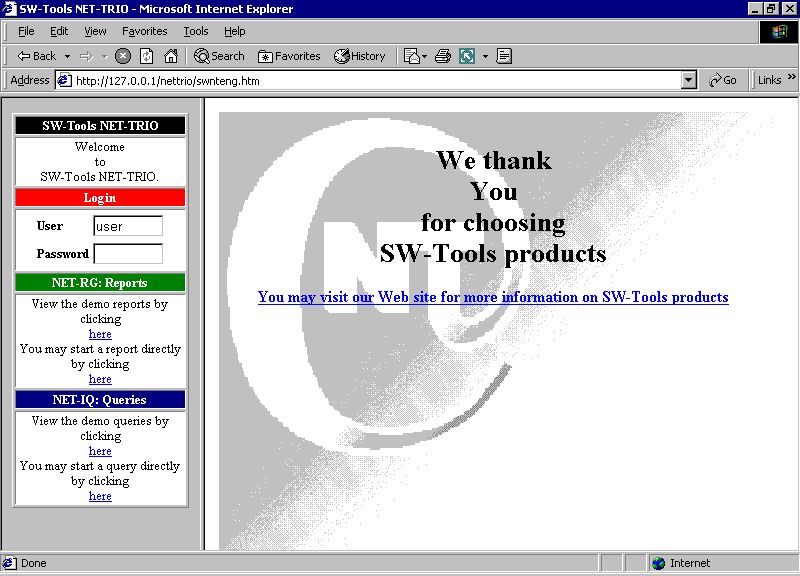
20. IIS - Standard startup page in browser
3. NET-RG Report Generator
NET-RG report execution does not require any client side installation or plugin. However, if you need to return the printout of a report to a client by means of the NET-TRIO screen printer the client must have a SW-Tools TRIO installation and license present.
Printing out in HTML, GIF or another format does not require any special client application.
Reports may still be printed to any Windows printer setup on the NET-TRIO server. The client that executed the report will only receive an acknowledge of that the report is printed, but the actual print is not on screen but physically printed on the requested printer.
With this functionality you may have 100 clients in your intranet that each have their own local printer. If they need to execute reports and produce print on their own printer the NET-TRIO server PC must know this printer, e.g. as a network printer. Now anybody may print reports on anybody's printer.
3.1. System reports
NET-RG contain a couple of system reports which provides a standard way of:
- Selecting a subsystem (System report 950)
- Selecting a report within the selected subsystem (System report 951)
- Enter start parameters and execute the selected report (System report 952)
The reports are ment as samples for you to examine.
You may use the Report Generator icon to access the system reports as well as reports from the installed demo system. To access the system reports please select menu
File - Subsystem - System files
3.1.1. Subsystem Selector
The subsystem report will read the DMSYSTEM.SSV file to generate a list of all defined subsystems.
According to the ssv_use function it will test if the user have access permission to the subsystem. If no access permission or no reports present in the subsystem it will be discarded from the final listing.
The report calculates a text field with a HTML href tag in order to start the Report Selector report.
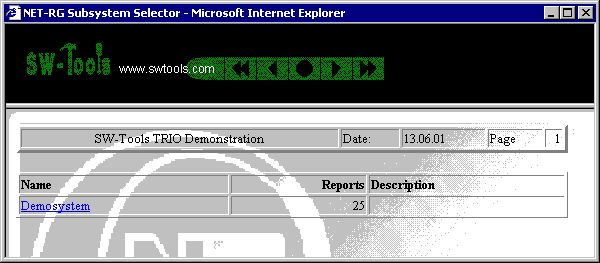
21. NET-RG Subsystem Selector
3.1.2. Report Selector
The report selector will read the DMREPORT.SSV file to generate a list of all defined reports within a subsystem. The requested subsystem is given as a data input field.
According to the ssv_use function it will test if the user have access permission to the report. If no access permission it will be discarded from the final listing.
The report calculates a text field with a HTML href tag in order to start the Report Start report.
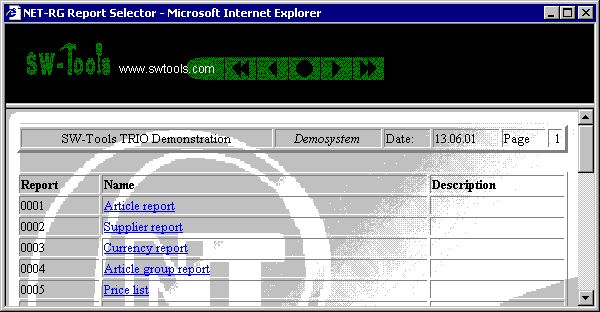
22. NET-RG Report Selector
3.1.3. Report Start
The start screen provided by this report contains all known start parameters to a report as known from SW-Tools TRIO. Also, the report start statistic and archiving is present.
The report start report is a bit more complex than the two other reports. It uses a function called exrep to produce its HTML output. The definition file for this is located in the same directory as the report source file DM1952.src and is named DM1952.HTM.
If you need to amend this file please use a plain editor such as Notepad or Wordpad. It contains plain HTML code but divided into sections [xxxx] and including references to fields xx#99 and calculations [IF...]. If you try to use a WYSIWYG HTML editor it may corrupt the structure if this file.
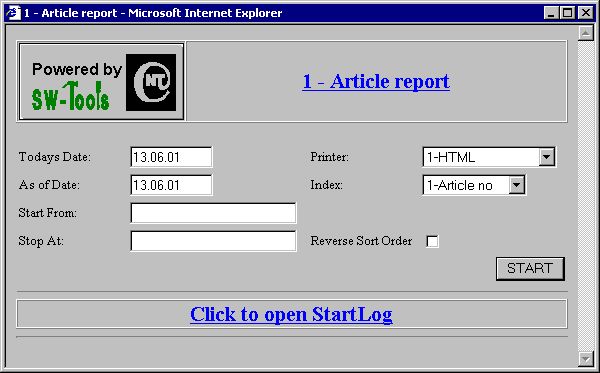
23. NET-RG Report Start
3.1.4. Your own report start page
You may use the HTML Form method to setup your own report start page.
The table below is a list of common variables which may be used within the form.
| |
NAME |
Required |
Description |
|
Trio_Uid |
Yes |
User name |
|
Trio |
|
Yes |
|
TrioSystem |
|
Subsystem (4 digits) |
|
Lan |
|
Languagecode (dan,eng,ger,...) |
|
Trio_0 |
Yes |
Printer |
|
Trio_1 |
|
Todays Date |
|
Trio_2 |
|
As of Date |
|
TrioIndex |
|
Mainfile index |
|
Trio3 |
|
Start From |
|
Trio4 |
|
Stop At |
|
Trio_5..Trio_11 |
|
Data input #D1..D7 |
|
TrioDescend |
|
Reverse Sort Order |
|
TrioTotal |
|
Lowest Total Level |
|
Trio_Psw |
|
Report password |
Apart from the predefined variables you may include additional input fields not known to the report itself. However, the report generator provides a subfunction named cgi_par which may retrieve the value of any form field.
3.1.4.1. Sample HTML form
The sample is located in the file swex1eng.htm.
.
        <HTML>
         <HEAD><TITLE>Report Start Form</TITLE></HEAD>
         <BODY>
          <FORM NAME="myreportstart" METHOD="post" ACTION="/nettrio/rap00132.exe">
           <INPUT TYPE="hidden" NAME="Trio" VALUE="017">
           <INPUT TYPE="hidden" NAME="TrioSystem" VALUE="0001">
           <INPUT TYPE="hidden" NAME="Trio_Uid" VALUE="user">

           Before you may start the report please select a printer
           <SELECT NAME="Trio_0">
            <OPTION VALUE="1">HTML
            <OPTION VALUE="6">GIF
           </SELECT>
           <BR>

           and select from group
           <INPUT NAME="Trio_5" SIZE=2 MAXLENGTH=2 VALUE="0">
           and to group
           <INPUT NAME="Trio_6" SIZE=2 MAXLENGTH=2 VALUE="9">
           <BR>

           Please enter your email address
           <INPUT NAME="EmailAddress" SIZE=64 MAXLENGTH=64 VALUE="swtools@swtools.com">
           <BR>

           Finally, click Start
           <INPUT NAME="Start" TYPE="submit" value="START">

          </FORM>
         </BODY>
        </HTML>
.
3.1.4.2. Retrieve form field value
To retrieve a form field value you may use the function cgi_par. If your form includes a form field defined as
<INPUT NAME="EmailAddress" SIZE=64 MAXLENGTH=64 VALUE="swtools@swtools.com">
your report calculation may be
#20 = cgi_par("EmailAddress")
Field #20 must be a text field and will now contain the value
swtools@swtools.com
3.2. Direct start of report
If you want to start a report directly without selecting subsystem etc, the standard startup page shows you a sample of how to do it. You need to select
You may start a report directly by clicking here
The sample will produce the output in the right frame part.
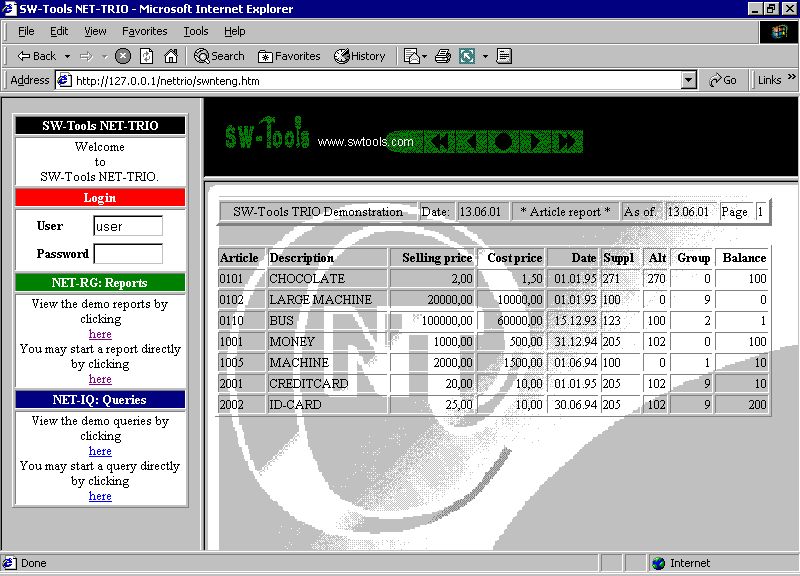
24. Direct start of a report
The HTML code for starting a report directly is done by a javascript function located in the file SWNT1XXX.HTM. The function will produce a HTML href
        /nettrio/rap00132.exe?TRIO=1001%20-s1%20-uid=user
.
You may refer to the report start parameters in the SW-Tools Report Generator Manual.
Please note, TRIO=1001 contains the subsystem times 1000 plus the report number
to execute, which differs from the normal way of calling RAPWIN32.EXE.
A sample HTML page which allows the user only to click on a link in order to
start a report and receive the result in a new browser window would be
.
        <HTML>
        <HEAD><TITLE>My Report Start Page</TITLE></HEAD>
        <BODY>
         Please click
         <A HREF="http://127.0.0.1/nettrio/rap00132.exe?TRIO=1005%20-s6%20-uid=user" TARGET="_new">here</A>
         to start report 5 subsystem 1 on printer 6.
        </BODY>
        </HTML>
.
The sample is located in the file swex2eng.htm.
3.3. NET-PA Printer Administration
The printer administration is the same as in TRIO but extended with a group field. The group field control the way a report return the output to the client browser.
3.3.1. Standard printers
When NET-TRIO is installed the following printers is defined:
- HTML
- HTML All-In-One
- Text
- Text All-In-One
- RTF
- GIF
- GIF Landscape
- PDF
- PDF All-In-One
- PDF Landscape
- PDF All-In-One Landscape
Any printer may be added, modified or deleted.
3.3.2. Printer group field
The printer group field makes reference to a MYPRTxxx.CGI file, where xxx. is the printer group number. This file contains the HTML code for how to produce the page returned to the client. The following group numbers is reserved by SW-Tools:
| |
Group |
Description |
|
0 |
Any SW-Tools printer (HTML,TXT,RTF,PDF,etc.) |
|
1 |
Reserved |
|
2 |
SW-Tools screen printer (requires client side SW-Tools TRIO installation) |
|
3 |
Windows printer (e.g. HP-Laser,Epson etc.) |
|
4 |
Reserved |
|
5 |
Reserved |
If setting up a printer on the server you need to specify group 3.
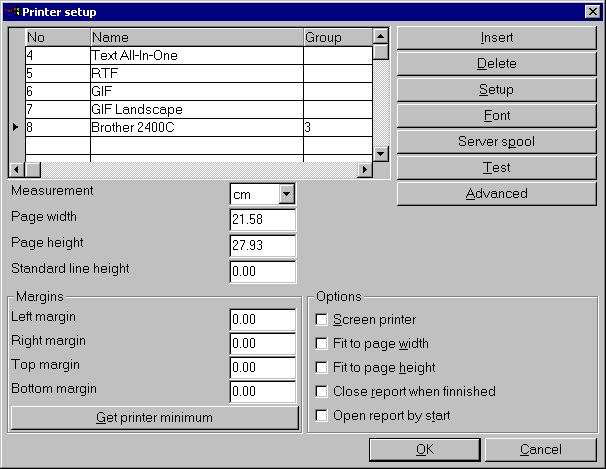
25. Setting up a windows printer
4. NET-IQ Intelligent Queries
NET-IQ requires the client side to have a plugin installed which will limit the use to Windows based clients. However, the plugin will provide an object intergrated into any HTML page which supplies a full desktop with multiple query windows open at the same time. This is very important because one of the key benefits of IQ is the ability to interact between query windows according to predefined relations database table in between.
The user interface color settings will be according to the client Windows setting.
The plugin will of course provide the toolbar from IQ and also the menu for each query window, although the menu is not provided as a normal menu bar but rather as a menu button within each query window. This have been choosen to minimize the requirements of refreshing the plugin object too much.
4.1. NET-PS Plugin Service
The plugin service SWSRV32.EXE MUST be started on the server in order for any IQ/DATAMASTER application to be started. If it is NOT you will receive an error like this:
Plugin init: -8 [xxxx]
When NET-PS Plugin Service is running an icon PSwill be present in the Windows taskbar.

26. NET-PS Plugin Service icon in the taskbar area
You may right click on this icon to view information of who is or have been connected.
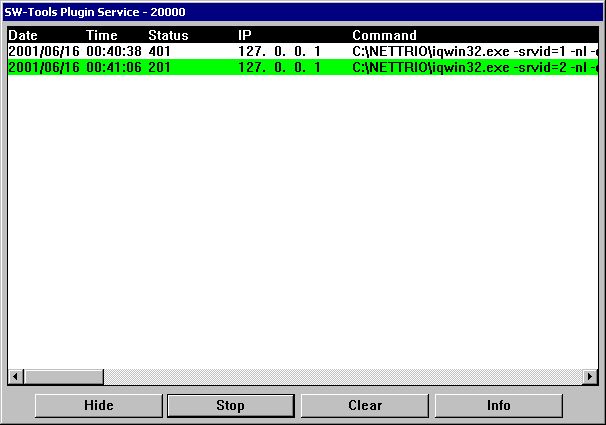
27. NET-PS Plugin Service window
A line with white background indicates that the connection is finnished, a green line that it is active and a red line that the connection failed.
You may Stop the service, Hide the window, Clear the content of the window or get connection statistics by selecting Info.
4.1.1. Error codes
| |
Errorcode |
Description |
|
-1 |
WINSOCK/WSOCK32 DLL cannot be loaded |
|
-2 |
TCP/IP cannot be initialized |
|
-101 |
Server cannot create socket |
|
-102 |
Server cannot bind address |
|
-103 |
Server cannot list on socket |
|
-104 |
Server cannot setup async select |
|
-105 |
Invalid user id |
|
-106 |
Too many concurrent users |
|
-201 |
Client cannot create socket |
|
-202 |
Client cannot connect to SW-Tools NET-PS |
|
-203 |
Client cannot send start command to SW-Tools NET-PS |
|
-204 |
Client failed to get response to start command (select) |
|
-205 |
Client failed to get response to start command (recv) |
|
-206 |
Client received error response from SW-Tools NET Service |
|
-207 |
Client cannot setup async select |
4.2. Download of the NET-IQ Plugin
The client side plugin installation file is located in the directory there NET-TRIO is installed. It is named
SWNET.CAB
The CABinet file is not digitally signed.
4.3. NET-IQ Plugin
If you select
You may start a query directly by clicking here
the standard startup page will start the IQ query 1 from subsystem 1 in the right frame.
If the client does not have the SW-Tools NET-IQ Plugin installed the page i will be downloaded.
You may get a security warning because the NET-IQ plugin is not digitally signed.
4.4. System reports
NET-IQ contain a couple of system reports which provides a standard way of:
- Selecting a subsystem (System report 960)
- Selecting a query within the selected subsystem (System report 961)
- Execute the selected query (System report 962)
The reports are ment as samples for you to examine.
You may use the Report Generator icon to access the system reports. To access the system reports please select menu
File - Subsystem - System files
4.4.1. Subsystem Selector
The subsystem report will read the DMSYSTEM.SSV file to generate a list of all defined subsystems.
According to the ssv_use function it will test if the user have access permission to the subsystem. If no access permission or no queries present in the subsystem it will be discarded from the final listing.
The report calculates a text field with a HTML href tag in order to start the Program Selector report.
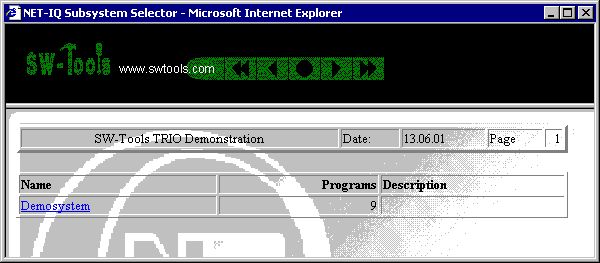
28. NET-IQ Subsystem Selector
4.4.2. Program Selector
The program selector will read the IQREPORT.SSV file to generate a list of all defined queries within a subsystem. The requested subsystem is given as a data input field.
According to the ssv_use function it will test if the user have access permission to the program. If no access permission it will be discarded from the final listing.
The report calculates a text field with a HTML href tag in order to start the Program Start report.
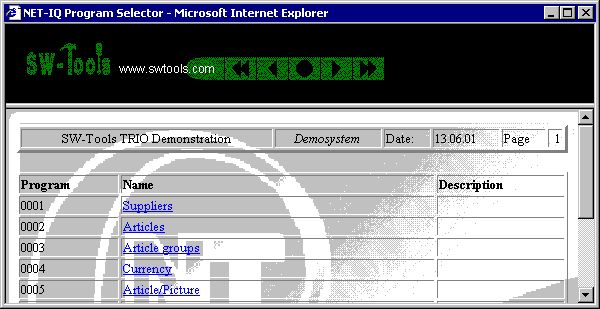
29. NET-IQ Program Selector
4.4.3. Program Start
The program start returns a HTML page which includes the embedded object required for any IQ query.
The program start report is a bit more complex than the two other reports. It uses a function called exrep to produce its HTML output. The definition file for this is located in the same directory as the report source file DM1962.src and is named DM1962.HTM.
If you need to amend this file please use a plain editor such as Notepad or Wordpad. It contains plain HTML code but divided into sections [xxxx] and including references to fields xx#99 and calculations [IF...]. If you try to use a WYSIWYG HTML editor it may corrupt the structure if this file.
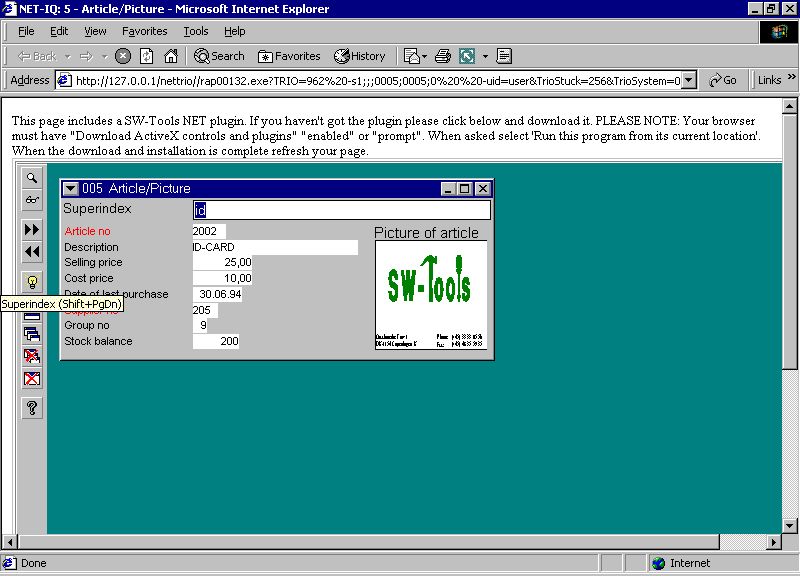
30. NET-IQ Program 5 started
4.4.3.1. Syntax in DM1962.HTM
The file embeds an IQ query using the following HTML tag:
<OBJECT ID="SWNetIQ"
NAME="SWNet.IQ"
CODEBASE="http://#68#66_swnet.cab"
CLASSID="CLSID:1C30CBCE-C520-11D4-9EAC-00001CE5A2E3"
STANDBY="Loading SW-Tools NET ActiveX...."
WIDTH="800"
HEIGHT="600">
<PARAM NAME="Server" VALUE="#68">
<PARAM NAME="ServicePort" VALUE="#69">
<PARAM NAME="Flags" VALUE="4">
<PARAM NAME="Program" VALUE="#38">
<PARAM NAME="TimeOut" VALUE="">
<PARAM NAME="UserIDandPSW" VALUE="#39">
<PARAM NAME="ExecuteURL" VALUE="">
<PARAM NAME="AdditionalIQPars" VALUE="">
</OBJECT>
The report will replace #68 with the Server name, #66 with the nettrio vertual directory name, #69 with the Service portnumber, #38 with the Subsystem*1000+Program number and #39 with the User name.
Please NOTE the parameter Flags may be a value added up by:
| |
Field |
Bitvalue |
Description |
|
Server |
|
Server IP-address or hostname. |
|
Serviceport |
|
Port number of SW-Tools NET-PS Plugin Service. |
|
Flags |
|
User interface options |
|
|
1 |
Transparent background |
|
|
2 |
Transparent toolbar background |
|
|
4 |
Toolbar to the left |
|
|
8 |
Toolbar to the right |
|
|
16 |
Toolbar on the bottom |
|
|
32 |
No close button in window title |
|
|
64 |
No maximize/restore button in window title |
|
|
128 |
No minimize button in window title |
|
|
256 |
No move of window allowed |
|
|
512 |
No size of window allowed |
|
|
1024 |
No menu button in window |
|
|
2048 |
No window frame and title |
|
|
4096 |
No toolbar |
|
|
8192 |
Toolbar autohide |
|
|
16384 |
Always maximize windows |
|
|
32768 |
Report window resize to server (Business Intelligence Viewer) |
|
Program |
|
Program number XXXYYY where XXX is the subsystem number and YYY is the program number. |
|
Timeout |
|
Timeout. If the client does not operate within the timeout the query will |
|
|
|
be disconnected by the server. If no timeout is given the default is |
|
|
|
20 minutes. The timeout must be given in seconds. |
|
UserIDandPSW |
|
User name,Password. If the first character is "?" the plugin will display |
|
|
|
a dialog with user name and password field to enter. |
|
ExecuteURL |
|
URL to execute before plugin connection |
|
AdditionalIQPars |
|
Additional parameters for IQ |
Please refer to any HTML manual for an explanation of the OBJECT tag.
4.5. Direct start of program
If you want to start a query directly without selecting subsystem etc, the standard startup page shows you a sample of how to do it. You need to select
You may start a query directly by clicking here
The sample will start the query in the right frame part.
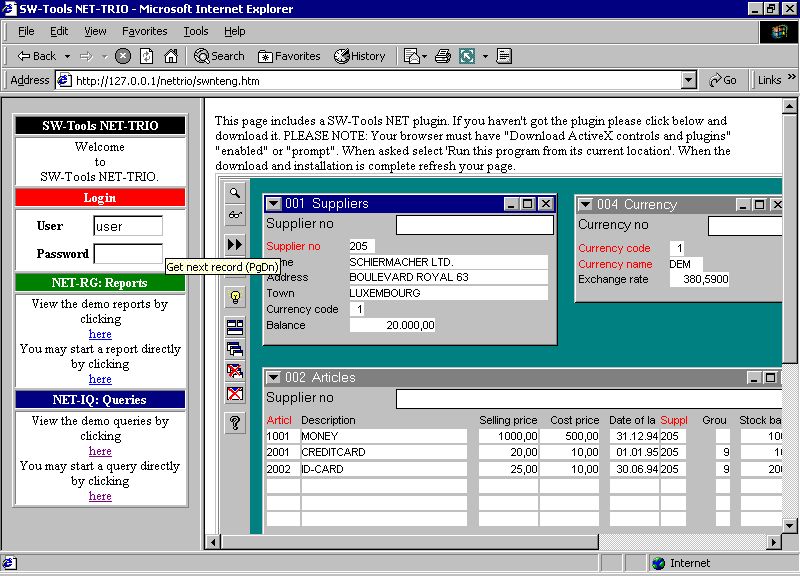
31. Direct start of a query
The HTML code for starting a report directly is done by a javascript function located in the file SWNT1XXX.HTM. The function will produce a HTML href
        /nettrio/rap00132.exe?TRIO=962%20-s1;;;0001;0001;0%20-uid=user&TrioStuck=256&TrioSystem=0001
.
TrioStuck=256 informs the report executer that it is a system report and TrioSystem sets the requested subsystem.
A sample HTML page which contains an NET-IQ query would be
.
        <HTML>
        <HEAD><TITLE>My Query Page</TITLE></HEAD>
        <BODY>
          You are logged in as 'USER' and this page contains query number 6 from
          subsystem 1.
          <BR>
          <OBJECT ID="SWNetIQ"
                NAME="SWNet.IQ"
                CODEBASE="http://127.0.0.1/swnet.cab"
                CLASSID="CLSID:1C30CBCE-C520-11D4-9EAC-00001CE5A2E3"
                STANDBY="Loading SW-Tools NET ActiveX...."
                WIDTH="600"
                HEIGHT="300">
              <PARAM NAME="Server" VALUE="127.0.0.1">
              <PARAM NAME="ServicePort" VALUE="20000">
              <PARAM NAME="Flags" VALUE="16">
              <PARAM NAME="Program" VALUE="1006">
              <PARAM NAME="TimeOut" VALUE="">
              <PARAM NAME="UserIDandPSW" VALUE="user">
              <PARAM NAME="ExecuteURL" VALUE="">
              <PARAM NAME="AdditionalIQPars" VALUE="">
          </OBJECT>
          <BR>
          The query only uses a desktop size of 600*300 pixels
          and the toolbar is placed on the bottom.
        </BODY>
        </HTML>
.
The sample is located in the file swex3eng.htm. This results in
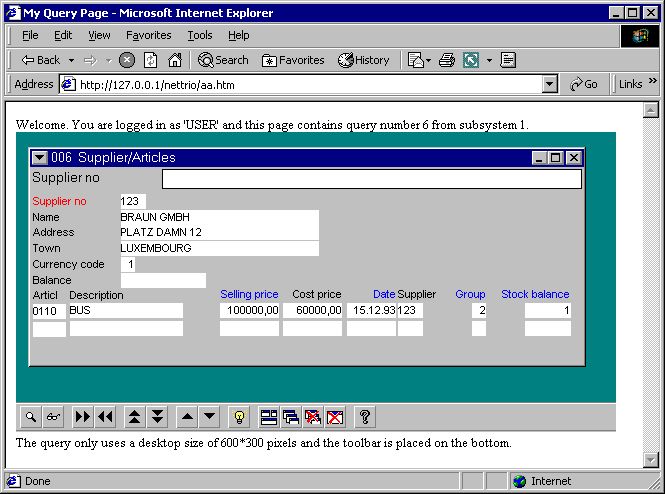
32. The sample NET-IQ HTML page
Please remember that the reference to 127.0.0.1 must be changed to the server name you have setup in your NET-TRIO Preference.
4.6. Functionality
4.6.1. IQ menus
The following menus is not within the NET-IQ client.
| |
Menu |
Reason |
|
Save |
Because it should NOT be allowed. |
|
Print setup |
Because it can be done from the browser. |
|
Hardcopy of window |
|
|
Hardcopy of screen |
|
|
Edit |
Because no amendment of the query is possible. |
|
View-Help... |
Because the saved default is used and may not be changed. |
|
Help |
Because the help available depends on the Web page that includes the NET-IQ plugin. |
5. NET-DM DATAMASTER
As known from SW-Tools TRIO, DATAMASTER only differs from IQ in terms of being able to update data and perform input on any form field. Therefore the description of how DATAMASTER works is no different from what is described in the previous chapter conserning NET-IQ.
6. Standard HTML, picture, JAVASCRIPT and system files
6.1. Standard public files
This is a list of the standard public files installed by NET-TRIO:
htm-frst.gif - HTML printer first page button
htm-next.gif - HTML printer next page button
htm-prev.gif - HTML printer previous page button
htm-last.gif - HTML printer last page button
htm-logo.gif - HTML printer logo
htx-bkgn.gif - HTML printer background graphic
htx-log2.gif - Logo shown at report start screen
bladr.gif - Image for page browsing
sta-eng.htm - Statistics HTML page
6.2. JAVASCRIPT files
This is a list of the standard JAVASCRIPT files installed by NET-TRIO in the public directory:
bladr.js - JAVASCRIPT for page browsing
common.js - JAVASCRIPT for common report start functions
start.js - JAVASCRIPT for report start functions
status.js - JAVASCRIPT for report statistics
6.2.1. SWNET.JS generated file
The file contains some variables which may be used in connection with any JAVASCRIPT code you may need for NET-TRIO.
.
        // (c) SW-Tools swnet.js
        SWNT_mas="127.0.0.1"
        SWNT_net="/nettrio/"
        SWNT_bin=""
        SWNT_pub="pub/"
        SWNT_tmp="tmp/"
        SWNT_eng_jumpto="Jump to page:"
        SWNT_dan_jumpto="Gå til side:"
        SWNT_ger_jumpto="Gehe zum Seite:"
        SWNT_eng_liciqerr="Sorry but NET-IQ is busy - Please try again later"
        SWNT_dan_liciqerr="Desværre er NET-IQ optaget - Prøv venligst senere"
        SWNT_ger_liciqerr="NET-IQ ist leider belegt - Bitte verzuchen Sie später"
.
All the variables named SWNT_xxx_yyy where xxx is the language code is taken from the SWNET.TXT file. This file contains any language dependent text.
6.3. Pictures, logo, static HTML pages
File of these types should be located in the public directory.
7. Temporary files
All temporary files will be stored in the directory setup in the NET-TRIO preferences. They will NOT be removed automatically. So you need to cleanup the files manually. The reason for not doing this automatically is that the temporary files may be accessed by report start through the Start log.
8. Requirements
8.1. Supported Web Servers
Technically all SW-Tools NET solutions may be used on any server running on any Windows platform. However, we internally have been using Windows 2000 and IIS (Internet Intermation Server).
8.2. Supported browsers
Technically all SW-Tools NET solutions may be used from any browser. However, we internally have been using
- Microsoft Internet Explorer (4.0 and 5.0)
- Netscape (Version 6.0)
- Opera (Version 5.0)
8.3. Firewall
If you are using a firewall any SW-Tools NET Service MUST be allowed to be started using a range of TCP ports on the server. For example, the SW-Tools IQ/DATAMASTER service IQWIN32.EXE must be allowed in the firewall to operate on the required range of TCP ports.
8.4. Router
If you are using a router it might be nessesary to modify the NAT table. According to the port numbers used in any SW-Tools NET plugin each port number MUST be assigned to the correct IP-address in order to work.
9. Subfunctions
In order to support HTML parameters and generation some new subfunctions have been introduced, as well as subfunctions for menu control from a report program.
9.1. CGI_PAR - Get CGI parameter
text cgi_par(Text par1)
Parameters:Par1: Parameter name to get
Description: This function gets the requested CGI parameter information.
Returnvalue: String containing the parameter
See also:CGI_WEBNAME, EXREP
Example:
   #11=cgi_par("TRIO3")    /* Get an input field (Start from)
   #11=cgi_par("3")        /* Get parameter no. 3 (numbered from 1..)
   #11=cgi_par("ssv,LM_3") /* Get parameter ssv, line id LM_3= or LM_3_nn=
   #11=cgi_par("ssv,LM")   /* Get parameter ssv, line id LM= or LM_nn=
   #11=cgi_par("ssv,3")    /* Get parameter ssv, line 3 (numbered from 1..)
9.2. CGI_WEBNAME - Get CGI parameter
Number cgi_webname(Text par1,Number par2)
Parameters:
Par1: Filename local or on web AND return filename
Par2: Mode
10 = Add local nettrio directory (homepath) ex. c:\nettrio
11 = Local tmp to web tmp ex. c:\nettrio\tmp\super\001x.htm ==> /nettrio/tmp/super/001x.htm
12 = Local tmp to web tmp ex. c:\nettrio/tmp/super/001x.htm ==> nettrio/tmp/super/001x.htm
13 = Web tmp to local tmp ex. /nettrio/tmp/super/001x.htm ==> c:\nettrio\tmp\super\001x.htm
14 = Insert web executable ex. rap00132.exe ==> /nettrio/bin/rap00132.exe
15 = Get value from WIN.INI ex. VDpub ==> pub, NetServer ==> www.swtools.com
100 = Get all NET-TRIO parameter values as SSV string
Description: This function translates local filename to/from web filename The CGI-Environtment variable PATH_WEB is used for this, if PATH_WEB not present (or not running CGI), WIN.INI [TRIO] web=... is used, it is NON-CGI reports may build websites
Returnvalue:
0: No running in cgi-mode
x: length of webpath
See also:CGI_PAR
Example:
   #11="d:/web/myfile.ssv"
   cgi_webname(#12,#11,1)      /* #11 becomes /myfile.ssv
   cgi_webname(#12,#11,0)      /* #11 becomes d:/web/myfile.ssv again
   cgi_webname(#12,#11,2)      /* #11 becomes myfile.ssv
9.3. EXREP - External report file handling fot HTML generation
Number exrep(Text par1, Text par2, Text par3)
Parameters:
Par1: Command: OPEN, OUTPUT, FLUSH, CLOSE, PRINT see below
Par2: Parameters, Dependent on command, see below
Par3: 0 or Handles 0-9
.
Description: EXREP takes [sections] in an input file and produces an output file, which may be returned as a result of an CGI-query.
The input file must be created by some plain text editor, you may name the file individually or place these together with the report source, for a report no.47, the source is DM1047.SRC, the EXREP input filename defaults to DM1047.HTM
The following commands may be given in par1/par2 for EXREP:
exrep("OPEN","filename") Open input file, default DMnnnn.htm
exrep("OUTPUT","filename") Open output file
exrep("FLUSH") Flush input file to STDOUT (return from CGI)
exrep("CLOSE") Close input and output file
exrep("PRINT","label") Print the contents of [label]
In the input file fields may be referenced as:
#17 This field
#17&'(1,2) Leading zeroes, zero suppress, from-to
#17(3) Occurence
#17input Pass field thru section [input(#17_)]
WW#3 Workfield, (may be given as #107 also)
The input file may contain the commands:
[label] Label for PRINT, ends any previus label
[LET expression] Invoke calculations on the given expression
[IF expression] Calculate and skip next lines if false (0)
[ELSE] else
[ENDIF] end if
The Par3 should normally be omitted, EXREP has the possibility to work with 10 different input/output files concurrently. EXREP("print","head","0-3,5") will read input files 0,1,2,3,5 and write to the output files "0,1,2,3,5".
Returnvalue:0
See also:CGI_PAR, CGI_WEBNAME
Example:
The report 47 calculations may be:
   first                          /+ By start of the report
          exrep("print","head")   /+ Print a heading
   after                          /+ For each record selected in the file
          exrep("print","line")   /+ Print a line
   last                           /+ When report is finished
          exrep("print","foot")   /+ Print the footer
          exrep("flush")          /+ And return the CGI-Output
.
And the input file DM1047 may look like:
   [head] <html><head><TITLE> *** WW#1 *** </TITLE></head><body>
          <TABLE>
             <TR> <TH>No</TH> <TH>Name</TH> </TR>
   [line]
             <TR> <TD>#1</TD> <TD>#2  </TD> </TR>
   [foot]
          </TABLE></body></html>
9.4. ssv_repla - Replacements in textstring
number ssv_repla(text par1, text par2, number par3, Bitflag par4, number par5, number par6)
Parameters:
Par1: Input and Output string
Par2: Replacements as from;to;from;to;...
Par3: 0 or max length of output string
Par4: Options for replacement:
0=Normal
1=Uppercase compare
2=Allow \092 special characters in par2
4=Word replace
8=Reserved, see ssv_replafile
16=Reserved, see ssv_replafile
32=If par2 <to> is numeric it is assumed to be a char * (carefull pls)
64=Do not strip spaces from input string
Par5: Start position in string for replacement
Par6: 0 or max number of replacements to be done
Description: All strings from par2 found in par1 are replaced.
Returnvalue: Number of replacements done.
Example:
   #11="/sys/eng/aaa"
   ssv_repla(#11,"eng;ger;sys;syseng")    /* #11 becomes syseng/ger/aaa
9.5. ssv_use - Get user permissions
text ssv_use(number par1,number par2)
Parameters:
Par1: Permission type
910=Program
911=Subsystem
Par2: Program or Subsystem number
Description: This function is used to check, if user has permission for a program.
Returnvalue:
0=No permission
1=Ok, goon
See also: USERINFO
Example:
#11=ssv_use(210,6) /* Check if report 6 is allowed
9.6. SUBSYS- Change current subsystem (RAP)
number SUBSYS(Text par1)
Parameters: par1 : Subsystem number as "0001"
Description: Used for selector (system) reports before fileopen, as the filenames are dependent on the selected subsystem number.
Returnvalue: 0
See also:OPEN
Example: SUBSYS("0001") /+ Shift to subsystem 1 OPEN(PR) /+ And open report overview file
9.7. CHAIN- Execute URL in a new window (IQ)
The CHAIN command is extended with the following syntax:
CHAIN("url:http://www.swtools/com/index.htm","_blank")
which will start a new browser windows with the content given by the URL. This means, that if the program name start with "url:" and the session is a NET-IQ session you will have this functionality.